 Hydra Vision Learn
Tool · Test & Optimise
Compare: runs side by side.
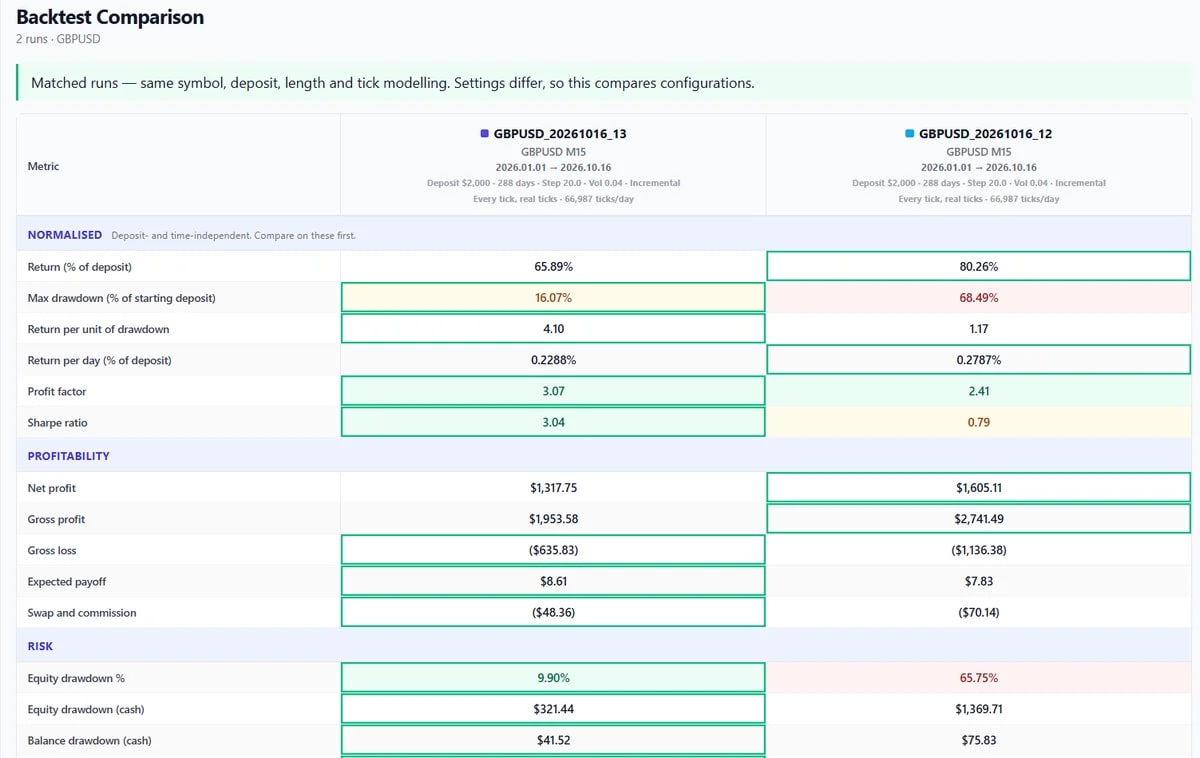
Compare lays several Hydra Vision backtests next to each other, measured the same way, so the differences between them are visible at a glance.
The problem it solves
Testing a configuration means running variations: a wider step, a different PCL strategy, another symbol. Comparing them by flicking between separate reports, or copying figures into a spreadsheet, is slow and easy to get wrong.
What you see and do
- Pick the runs. In Backtest Analysis, mark up to five backtests for Compare and open the viewer.
- One table. The runs appear in columns, each titled by its backtest name with the symbol underneath, measured the same way from the report each run produced.
- Charts and at-a-glance bars show where the runs part ways.
- Warnings tell you when runs were calculated differently or are not directly comparable.
Compare shows how results differ. To see exactly which settings differ between the runs, use Settings Diff. To see how several symbols would have combined on one account, use Portfolio.
Which plan includes it
Both the Free Trial and the Subscription. Compare the plans.
See it on a demo account. The trial is free for 14 days, with no credit card.
Start 14-day trial